
Preview and go live
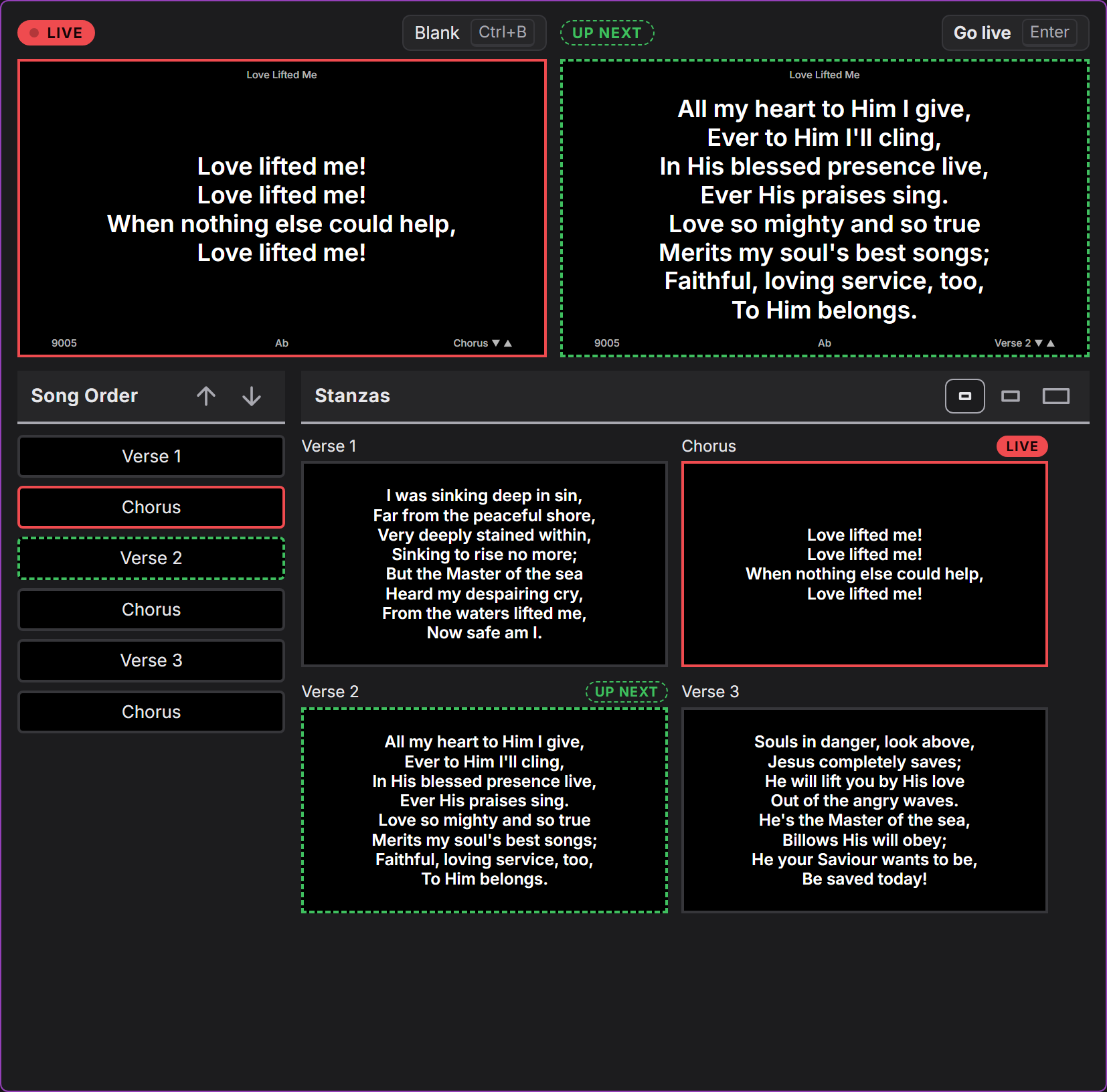
Live (red, on the left) is what the projector shows now. Up next (green, with a dashed edge, on the right) is what comes next. Below them, the Song Order lists the stanzas as they will be sung, repeats included, and the Stanzas grid shows each one.
Go live
In the Song pane, move to a stanza with ↑/↓ and press Enter. That stanza goes on the projector, the Stage becomes active, and you are in live mode.
Move through the song
In live mode the keys move Live:
| Key | What it does |
|---|---|
| Space, ↓ or → | Next stanza in the Song Order |
| ↑ or ← | Previous stanza |
| 1–9 | Verse 1 to 9 |
| C | The chorus |
| B | The bridge |
| A click on a stanza | That stanza |
A jump to the chorus goes to its next place in the order, so Space carries on from there. When the last stanza is live, Up next is blank.
The ↑ and ↓ buttons beside the Song Order heading do the same as the keys. The three small buttons beside the Stanzas heading change the size of the thumbnails.
Blank the screen
- Esc in the Stage blanks the projector (solid black) and ends live mode. Esc again goes back to the Song pane.
- Ctrl+B blanks from any pane, even while you type. The Blank button does the same.
- After a blank, Up next holds the stanza that was live. Press Enter, or click Go live, to put it back.
Out of live mode, the same keys move Up next instead, and Enter or Go live sends Up next to the projector.
Ctrl+R ends live mode, clears every pane and returns to the search box: a fresh start. It also closes any sound that is playing.
From one song to the next
You can find and open the next song while the current one stays on the projector. Nothing changes on the screen until you confirm the switch. The app never replaces a live song by accident.
- A song is live and the Stage is active.
- Press Ctrl+1, or click the search box. The keyboard moves to Search. The projector keeps showing the live stanza. Don't press Esc in the Stage: that blanks the screen.
- Type the next song, then press Enter to go into the results and Enter again to open it. It appears in the Song pane. The projector is still unchanged.
- Choose the starting stanza with ↑/↓. It is marked with a bar.
- Press Enter when it is time. The app asks End live mode first. Cancel is highlighted, so a stray Enter changes nothing.
- Click Exit live mode and continue, or press Tab, then Enter. The new song replaces the old one at that stanza, with no black between, and the Stage becomes active.
- Carry on with Space, or ↓, the number keys, C and B, as before.
To show black between songs, press Ctrl+B first. With nothing live, Enter on the new song's stanza puts it up with no question.