
Install and open your library
Visual Song Book runs on Windows 10 and 11. Install it on the computer that runs the projector.
Install
- Download the installer from the Download section of this site.
- Open the file you downloaded.
- If Windows says it protected your PC, click More info, then Run anyway. The beta isn't signed yet, so Windows shows this warning. It goes away once the app is signed.
- Follow the installer's steps. You can keep the choices it suggests.
- Start Visual Song Book from the Start menu.
Plug in the projector
The app picks the projector for you. It opens on one screen and puts the words full screen on the other.
- Plug the projector in before you start, or at any time.
- The status bar, along the bottom, starts with Output: and the name and size of the display it is using.
- With only the computer's own screen, it says Output: none chosen. Nothing is shown until a projector is plugged in.
Your song library
Your songs are kept in a song library: one file whose name ends in .vsbx.
- The first time you start the app, it makes a library called Songbook in your Documents folder and opens it.
- After that, it opens the last library you used.
- The library's name heads the Library pane. Click it, or press Ctrl+O, for New library…, Open library…, Save Copy As… and Recent.
- Save Copy As… makes a backup. Keep a copy somewhere safe, such as a USB stick.
While something is on the projector, the app won't switch libraries until you end live mode. Nothing you do with libraries blanks the projector unless you choose to.
A first look
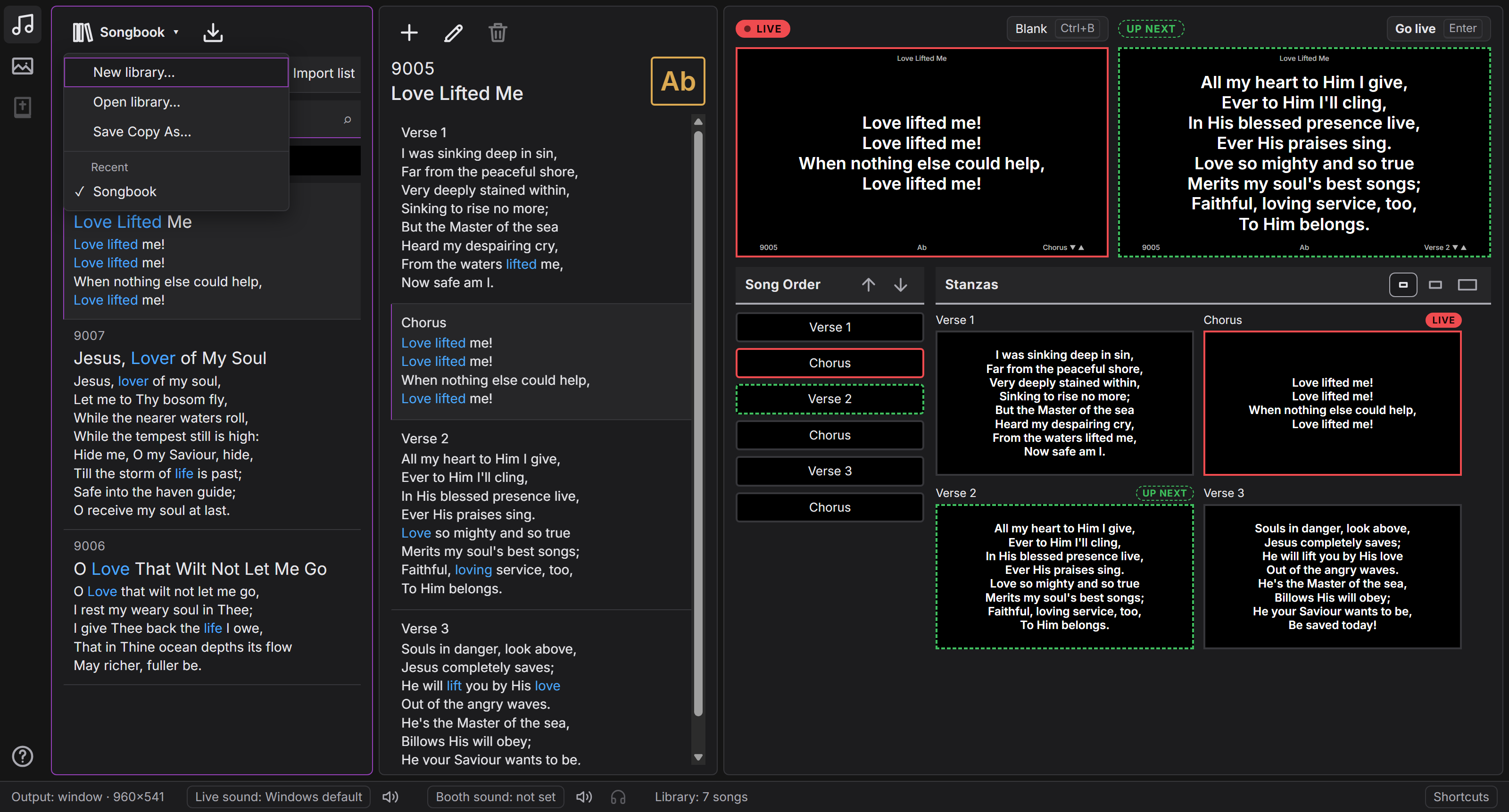
The module bar at the far left switches between Songs (Alt+1) and Media (Alt+2). Bibles is coming in a later version.
In Songs, the work moves left to right across three panes: Library → Song → Stage.
| Pane | What it is for |
|---|---|
| Library | Finding songs. Its tabs are Search, Browse, History and Import list. |
| Song | The song you opened, as written. New song, Edit and Delete sit in its header. |
| Stage | Live on the left and Up next on the right, with the Song Order and the Stanzas grid below. |
- The active pane has a purple outline. The arrow keys, Enter and Esc act on that pane.
- Red means live. Green means up next. Each is also labelled in words.
- The header buttons are icons. Hold the mouse over one to see its name and its key.
- The Shortcuts button in the status bar lists every key. Esc or a click outside closes the list.
When a beta ends
Each beta works for a set time.
- The status bar says when it ends, such as Beta · ends December 25, 2026. The start-up screen says so too.
- Shortly before the end, a notice at the bottom left says when the beta ends. Click its × to close it.
- After the end, the app still opens and everything works except going live. A song that is live when the beta ends stays live until you end live mode.
- Then download the newest beta from this site and install it. It replaces the old one. Your songs stay where they are.